Best Free Poster Printing Software in 2026
Short answer: the best free poster printing software depends on your goal. Posteriza is best for precise multi-page tiling on Windows; PosteRazor is the cross-platform free alternative; The Rasterbator turns photos into halftone dot-art posters online; and Canva, PosterMyWall or Adobe Express are best if you want to design the poster first and then print it. All seven tools are compared below — every one of them is free to start.
Quick Comparison Table
| Software | Platform | Cost | Best for |
|---|---|---|---|
| Posteriza | Windows | 100% free | Precise tiling + text & frames |
| PosteRazor | Windows / Mac / Linux | 100% free | Cross-platform tiling |
| The Rasterbator | Online | Free | Halftone pop-art posters |
| Blockposters | Online | Free | Quick online tiling, no install |
| Canva | Online / apps | Free plan; Pro paid | Designing posters from templates |
| PosterMyWall | Online | Free plan; paid downloads | Poster & flyer templates |
| Adobe Express | Online / apps | Free plan; Premium paid | Pro-looking designs fast |
1. Posteriza — Best for Precise Tiling on Windows
Posteriza is a tiny (600 KB) free Windows program that splits any image across multiple A4/Letter pages so you can print a giant poster on a regular home printer. Unlike pure web tools, it lets you add custom text, shadows and frames before printing, and it handles printer margins automatically. It is portable — no installation, no adware. Download Posteriza 1.1.1 here.
Pros: 100% free, portable, text & frame tools, margin handling.
Cons: Windows only; interface looks dated.
Best for: Windows users who want exact control over tile layout.
2. PosteRazor — Best Free Cross-Platform Tiler
PosteRazor is the open-source classic: it cuts a raster image into PDF pages you print and assemble. It runs on Windows, macOS and Linux, which makes it the natural pick for Mac/Linux users who want a Posteriza-style workflow. (Note: PosteRazor is a different program by a different developer — our sister site posterazor.org covers it in depth.)
Pros: free and open source; works on Mac and Linux; simple 5-step wizard.
Cons: no built-in text tool; output is PDF only.
Best for: Mac/Linux users who need free tiling software.
3. The Rasterbator — Best for Halftone Art Posters
The Rasterbator does something different: instead of enlarging your photo normally, it converts it into huge halftone dots, creating that iconic pop-art look. You upload an image on the website, choose the size, and print the dot pattern across many pages. The result looks intentionally artistic — great for bedrooms, studios and gig posters.
Pros: free, no install, unique artistic style.
Cons: only the dot-art style; not suitable for sharp photo murals.
Best for: stylized, artsy wall posters.
4. Blockposters — Best Quick Online Tiler
Blockposters is a no-frills web tool: upload an image, pick how many pages wide, download the tiled PDF. Nothing to install, works in any browser including on phones. If you want the fastest path from photo to printed tiles, this is it. Our own free online poster splitter works the same way right here on this site.
Pros: free, instant, works on mobile browsers.
Cons: fewer layout controls than desktop software.
Best for: quick jobs and mobile users.
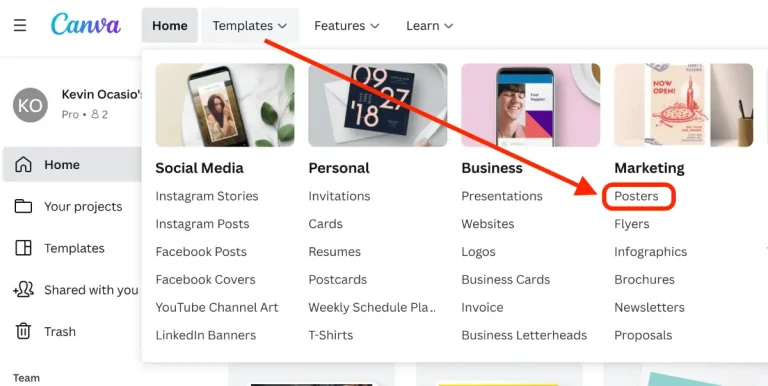
5. Canva — Best for Designing Posters from Templates
Sometimes the hard part is not printing — it is designing something worth printing. Canva offers thousands of free poster templates (birthday, business, classroom, events) you can customize in minutes, then export and tile with Posteriza or print directly. The free plan is genuinely capable; Pro adds premium templates, background remover and brand tools.
Design Your Poster Free with Canva →
Pros: huge template library; free plan is strong; beginner-friendly.
Cons: best features need Pro; not a tiling tool itself.
Best for: anyone starting from a blank page.
6. PosterMyWall — Best for Poster & Flyer Templates
PosterMyWall is more specialized than Canva: it focuses on posters, flyers and social graphics, with a deep library of event and business templates. A good alternative if you find Canva’s library too generic for your niche (gig posters, church events, restaurant promos).
Pros: poster-focused templates; easy customization.
Cons: high-res downloads need a paid plan.
Best for: event and promo posters.
7. Adobe Express — Best for Pro-Looking Designs Fast
Adobe Express is Adobe’s answer to Canva: quick social and print designs with professional fonts, stock photos and one-click effects. If you already live in the Adobe ecosystem, the workflow is seamless — design in Express, export, then tile and print.
Pros: Adobe-quality assets; generous free plan.
Cons: premium features need a subscription.
Best for: polished, professional-looking posters.
How to Choose: A Simple Decision Guide
- Want exact, sharp photo tiling on Windows? → Posteriza.
- On Mac or Linux? → PosteRazor, or our online splitter in the browser.
- Want an artsy dotted look? → The Rasterbator.
- Need it done in 2 minutes on your phone? → Blockposters or our online tool.
- Starting from scratch with no design? → Canva or PosterMyWall, then tile the export.
- Don’t want to cut and glue at all? → See our poster printing services comparison — sometimes a print shop is cheaper than your time.
Frequently Asked Questions
What is the best free software to print large posters?
For precise tiling on Windows, Posteriza. For cross-platform use, PosteRazor. For quick online jobs, Blockposters or our free online tool. If you need to design the poster first, start with Canva’s free plan.
Can I print a poster on a regular home printer?
Yes. Tiling software splits your image across standard A4 or Letter pages; you print each page, trim the margins and glue them together. A 2-meter-wide mural costs only paper and ink.
Posteriza vs PosteRazor — which is better?
Posteriza has more layout control (text, frames, margin handling) but is Windows-only. PosteRazor runs on Windows, Mac and Linux but outputs PDF without text tools. Pick based on your operating system.
Is there a free online poster maker with no download?
Yes — Blockposters, The Rasterbator, and our own online poster splitter all run entirely in the browser, including on phones.
What paper should I use for DIY posters?
Standard 80 g/m² copy paper works for drafts. For display pieces, use 120–200 g/m² matte photo or presentation paper — it lies flatter and colors look richer.
When should I use a professional printing service instead?
When you need sizes beyond ~2 meters, gallery-grade color, or you simply don’t want to spend an hour cutting and gluing. Our services comparison breaks down the costs honestly.
This page contains affiliate links. We may earn a commission at no extra cost to you.