How to Print a Large Poster in Excel or Word (No Extra Software)
How to Print a Large Poster in Excel or Word (No Extra Software)
Yes — you can print a large poster in Excel or Word without installing anything: both programs can scale one page across multiple sheets of paper, which you then tape together. It’s a lifesaver on locked-down school or office computers. Below are the exact steps for both programs, plus the honest limitations — and a one-click alternative when Excel starts fighting you.
Method 1: Print a large poster in Excel
Excel’s Page Layout view plus print scaling is the most reliable office-suite method:
- Open your workbook and switch to View → Page Layout so you can see page breaks.
- Select the area you want on the poster (e.g. a chart, a table, or a diagram) and go to Page Layout → Print Area → Set Print Area.
- Go to File → Print → Page Setup. Under Scaling, choose “Fit to” and set it to something like 3 pages wide by 3 pages tall (adjust to your poster size).
- Set orientation (Landscape usually works best), margins to Narrow, and paper size to A4 or Letter.
- Click Print Preview and check that the content fills the grid the way you want — this is where you catch cut-off edges.
- Print, then trim the white margins and tape the sheets together into a grid.
Tip: Excel prints gridlines and cell borders by default in some setups — turn off gridlines (Page Layout → Gridlines → uncheck Print) unless you want them on the poster.
Method 2: Print a large poster in Word
- Insert your image or design so it fills one Word page as much as possible (set image size to nearly full page width).
- Go to File → Print, click Printer Properties (the exact button name depends on your printer driver).
- Look for a “Multi-Page”, “Poster”, or “Tiling” option in the driver dialog — many Epson, HP, and Canon drivers include poster printing (2×2, 3×3, etc.).
- Select the tile grid you want and print.
The catch: this method depends entirely on your printer driver, not Word. If your driver has no poster option, Word alone can’t split one page across sheets. (See our driver-specific walkthroughs: How to use your printer’s built-in poster feature.)
Limitations of the Excel/Word method
- Quality: Excel rasterizes at screen-ish resolution; fine text and photos come out softer than from a proper tiling tool.
- Control: you get “fit to N pages” — not exact overlap, margins, or tile-by-tile preview.
- Seams: every sheet has a printer margin you must trim by hand, or white lines stay visible.
- Photos: Word downsamples large images; big photo posters often look blurry.
The easier way: a one-click tiling tool
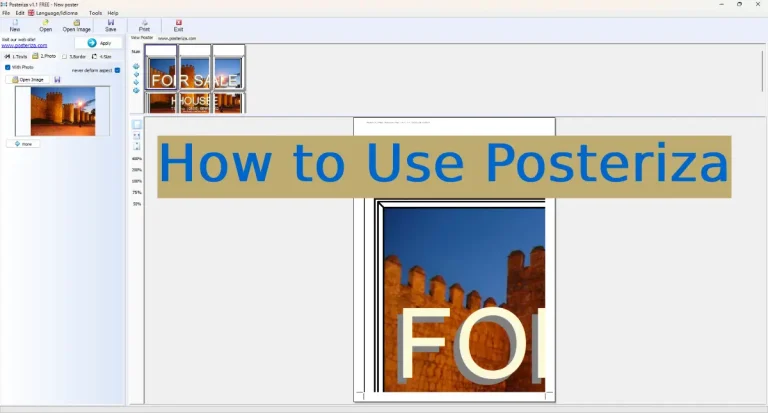
If Excel is fighting you — or you want exact control over tile size, overlap, and margins — skip the spreadsheet gymnastics: upload your image to our free online poster tiling tool, pick the grid (2×2 up to any size), and download print-ready sheets in seconds. No install, works on any computer, including locked-down school PCs. For the desktop version with even more control, download Posteriza.
Which paper should you use?
For posters assembled from office-suite prints, heavier paper makes assembly dramatically easier: 120–180g sheets stay flat and tape cleanly, while 75g office paper curls and wrinkles. See our recommendations in paper picks for posters and the full best paper for posters guide.
Frequently asked questions
Can Excel print across multiple pages?
Yes. Set a print area, then in Page Setup → Scaling choose “Fit to” and enter the number of pages wide and tall (e.g. 3 by 3). Excel splits the content across that many sheets.
Why is my Excel poster blurry?
Excel renders for screen resolution. For sharper results, keep text large, avoid small fonts, and use vector shapes instead of pasted screenshots where possible.
Can Word print a poster without the printer driver option?
Not natively — Word prints one page per sheet unless the printer driver offers poster/tiling mode. Use the online tiling tool instead: it works with any printer.
How do I remove gridlines from an Excel poster print?
Go to Page Layout → Sheet Options → Gridlines → uncheck “Print”. Also check “Print Titles” isn’t repeating rows on every tile.
What size can I reach with Excel poster printing?
Practically, a 4×4 grid of Letter sheets gives you roughly 34 x 44 inches before trimming. Beyond that, tile counts get unwieldy — consider an engineering print for cheap giant black-and-white posters.
Related: free online tiling tool · Posteriza for Windows · engineering prints at Staples
Disclosure: This page contains affiliate links. If you buy through them, we may earn a commission at no extra cost to you.