How to Design a Poster in Canva and Print It Large (2026)
The 6-Step Workflow (Design → Print → Wall)
You do not need design skills — just follow these steps. Total time for your first poster: about 30 minutes.
Step 1 – Start With the Right Size
In Canva, click Create a design → Custom size and enter your poster’s aspect ratio (not full print size — Canva caps dimensions). For a 60×90 cm poster, use 60×90 units; Canva scales proportionally on export. Alternatively, start from a ready-made poster template.
Step 2 – Build Your Design
- Headline first: one big bold message. Use a heavy font (e.g. Anton, Bebas Neue) at maximum size.
- One hero image: upload your photo or pick stock. Full-bleed backgrounds look most “designed”.
- Limit fonts to two: one display font for the headline, one clean font for details.
- High contrast: dark text on light photo areas and vice versa. Add a subtle dark overlay behind text if needed.
Step 3 – Check Readability at Distance
Zoom out to 25% — that approximates how the poster reads from across the room. If you cannot read the headline instantly, it is too small. This one check fixes 90% of amateur posters.
Step 4 – Export for Print
Share → Download → choose PNG (photos) or PDF Print (text-heavy), at the highest quality/size. Avoid JPG — Canva’s JPG export compresses harder.
Step 5 – Split Into A4 Tiles
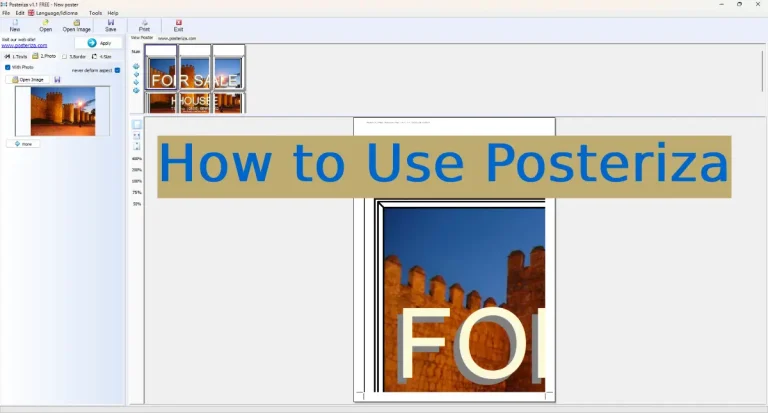
Open the exported file in Posteriza (or our free online splitter), set your final size, and print the tiles. Not sure how many sheets? Check the size chart.
Step 6 – Assemble Like a Pro
Trim, align, and glue following our assembly guide — invisible seams are 80% technique, 20% tools.
Pro Tips
- Bleed: extend background images slightly past the design edge so trimming never leaves white slivers.
- QR codes: add them in Canva (Apps → QR Code) for menus, Wi-Fi passwords, or Pix payments — test-scan the printed poster.
- Brand kit (Pro): if you make posters regularly for a business, Canva Pro’s brand kit keeps colors/fonts consistent.
Frequently Asked Questions
Is Canva free enough for poster design?
Yes. Thousands of templates and most core features are free. Pro adds premium stock, background remover, and brand kit — nice, not required.
What size should I design at in Canva?
Use your poster’s aspect ratio (e.g. 60×90 units for a 60×90 cm poster) and export at maximum quality; the splitter handles the final scaling.
PNG or PDF from Canva for printing?
PNG for photo-heavy designs, PDF Print for text-heavy ones. Both tile cleanly in Posteriza.
Will text stay sharp when enlarged?
Export at Canva’s highest quality and keep headline text large. Check our resolution guide for pixel targets.
Can I print a Canva design at a print shop instead?
Absolutely — export PDF Print and hand it to any shop. Compare with our DIY vs pro printing guide.
Disclosure: This page contains affiliate links. If you buy through them, we may earn a commission at no extra cost to you.