Posteriza vs Rasterbator: Which Poster Tool Should You Use?
Short answer: Posteriza is a Windows desktop program for precise, photo-accurate poster tiling — your image is enlarged and split across A4 pages exactly as it looks. The Rasterbator is a free online tool that converts your photo into giant halftone dots, producing a stylized pop-art poster. Want a sharp photo mural? Use Posteriza. Want artistic dotted wall art? Use the Rasterbator. Both are free.
Side-by-Side Comparison
| Feature | Posteriza | The Rasterbator |
|---|---|---|
| Type | Windows desktop software (portable) | Online web tool |
| Cost | 100% free | Free |
| Output style | Photo-accurate enlargement | Halftone dots (pop-art look) |
| Text & frames | Yes — built-in text tool | No |
| Works offline | Yes | No — needs a browser |
| Best for | Sharp murals, maps, banners | Stylized art posters |
What Posteriza Does
Posteriza takes your digital photo and slices it into a grid of printable pages (A4, Letter, A3…). What you see is what you get: the poster is an enlarged, faithful copy of your image. You can add headlines, watermarks and decorative frames before printing, and it automatically handles printer margins so the tiles align. It is a 600 KB portable program — no installation. Download Posteriza here.
Strengths: pixel-faithful output, text/frame tools, offline, tiny and fast.
Limitations: Windows only; the result is only as sharp as your source photo (use images at least 2000 px wide).
What the Rasterbator Does
The Rasterbator (at rasterbator.net) takes a completely different approach: it rasterizes your image into oversized halftone dots — the same technique used in newsprint and pop art. From a distance the dots blend into a recognizable image; up close it is pure graphic style. You upload a photo on the website, set the output size, and print the dot sheets.
Strengths: free, no install, unmistakable artistic style, works on any device with a browser.
Limitations: you cannot get a sharp photo mural — the dot look is the whole point; no text tool.
Which Should You Choose? (Decision Guide)
- You want a sharp photo mural, a big map, or a readable banner → Posteriza (or our free online splitter if you are not on Windows).
- You want a stylish dotted art piece for a bedroom, studio or bar → The Rasterbator.
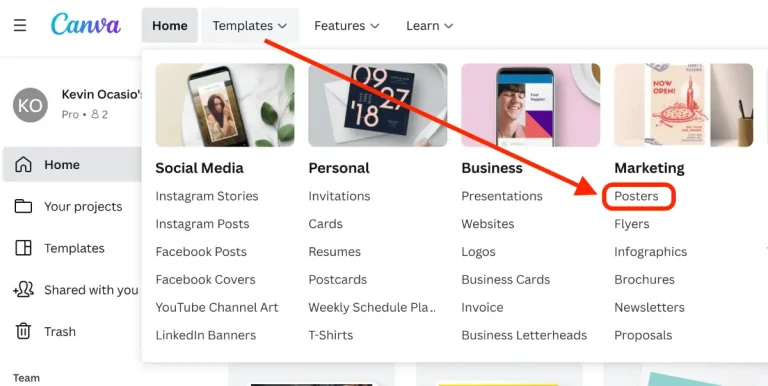
- You want to add big headlines or event text → Posteriza’s text tool — or design the poster first in Canva and then tile the export.
- You are on a phone or Chromebook → The Rasterbator, or our browser-based online tool.
Honestly, many people end up using both: Posteriza for the “real” posters (family photos, classroom maps, business banners) and the Rasterbator when they want something decorative and fun.
Can You Combine Them?
Yes — a popular trick is to design a poster in Canva (free templates for birthdays, gigs, sales), export it as a PNG, and then run it through Posteriza for precise tiling. You get professional design and exact print control, all free.
Mini-Workflow: Posteriza in 4 Steps
- Open your image in Posteriza (File → Open). Check the preview size.
- Set the tile grid in the Size tab — e.g. 3 pages wide × 3 pages high for a ~60×90 cm poster on A4.
- Add text or a frame if needed (Text tab), then click Apply.
- Print, trim and glue. Cut along the guide margins, align the tiles with a little overlap, and mount with tape or spray adhesive. Full walkthrough: how to use Posteriza.
Mini-Workflow: Rasterbator in 3 Steps
- Upload your photo at rasterbator.net and pick the output size (it can go huge — 5+ meters).
- Tune the dots: larger dots = bolder graphic look; smaller dots = more detail.
- Download the PDF, print and assemble. Because it is dots, slight misalignment between tiles is far less noticeable than with photo murals.
Paper Tips for Both
For Posteriza photo murals, use heavier paper (120–200 g/m² matte) — thin copy paper cockles with ink and shows tile seams. For Rasterbator dot posters, cheap 80 g/m² paper is perfectly fine because the graphic style hides everything. Either way, print one test tile first to check colors before committing to 20 pages.
Frequently Asked Questions
Is the Rasterbator free?
Yes, the online Rasterbator tool is free to use. You upload an image, it generates the halftone PDF, and you print it yourself.
Can Posteriza make halftone dot posters?
No. Posteriza enlarges images faithfully — it does not apply artistic dot effects. For the dotted pop-art look, use the Rasterbator.
Which gives better quality for a photo mural?
Posteriza, by far — it preserves your photo as-is. The Rasterbator deliberately replaces detail with dots, which is a style choice, not a quality choice.
Do I need to install anything for the Rasterbator?
No. It runs entirely in your web browser. Posteriza, by contrast, is a small Windows download (600 KB, portable, no installer).
I am on Mac. Which can I use?
The Rasterbator works on Mac because it is web-based. For Posteriza-style precise tiling on macOS, see our Posteriza for Mac guide or use our online splitter.
What if I don’t want to cut and glue pages at all?
Then skip DIY tiling and order a single-sheet print — see our honest DIY vs professional printing comparison.
This page contains affiliate links. We may earn a commission at no extra cost to you.